How to use Meowdoro
Short how-tos for Meowdoro on the Mac: a few steps each, and a video where we have one. New videos come out on our YouTube channel and Instagram; every feature in detail is on Features.
Get started
Open Meowdoro
- Download Meowdoro, open the DMG and drag Meowdoro to Applications. Then open it from there.
- There’s no Dock or menu bar icon: Meowdoro is the black island beside the notch. On a Mac without a notch, it’s a small bar in the middle of the top edge.
- Click the island to open it. Right-click it for Settings and Quit.
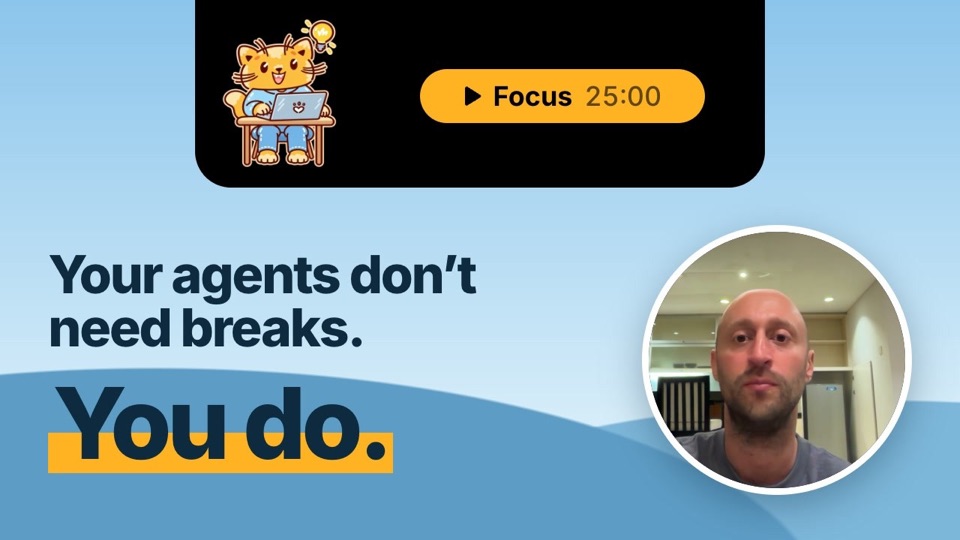 Play: Meowdoro in a sentence
Start a focus
- Press the play button on the right of the island, or the button on the card the island shows when a phase ends.
- The cat sits at its laptop, and the time counts down: 25 minutes by default, then a 5-minute break, and a 15-minute break after 4 rounds.
- To name the focus, open the island, click “Focus” and type what it’s for. The name goes into the journal.
- Lengths, rounds, the sound and how the time looks (digits, a ring or a bar) are in Settings.
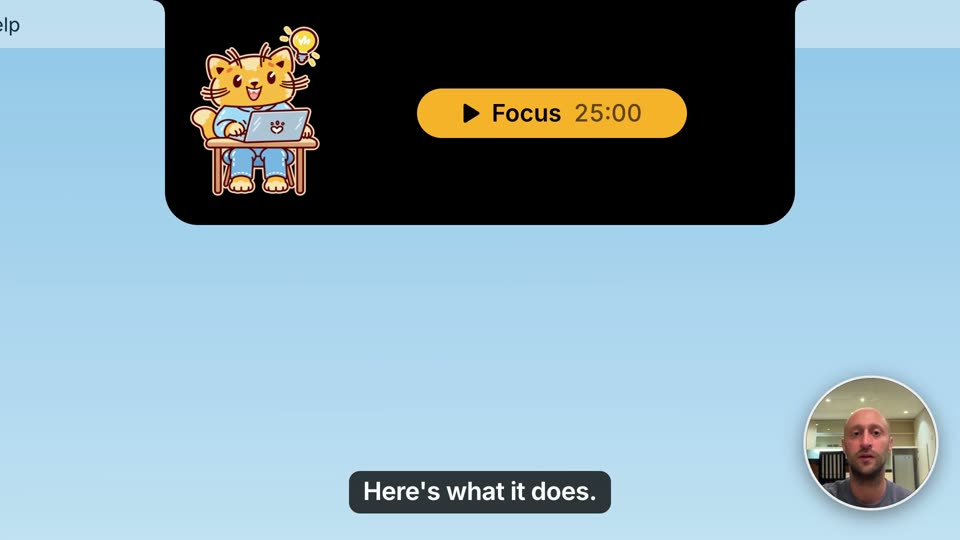 Play: A focus timer by the notch
Your agents
Connect Claude Code and Codex
- Right-click the island and choose Settings.
- Agents on this Mac shows a tile for each agent Meowdoro finds: Claude Code in the terminal or Claude Desktop, Codex in the terminal or ChatGPT.
- Click Connect on a tile, or “Connect all…”. It shows the commands it runs, and installs a small plugin with each agent’s own commands. A green ring means it’s connected.
- Sessions you start from now on show up in the island. A Claude Code session that was already open shows up in grey: type
/reload-pluginsin it, or restart it.
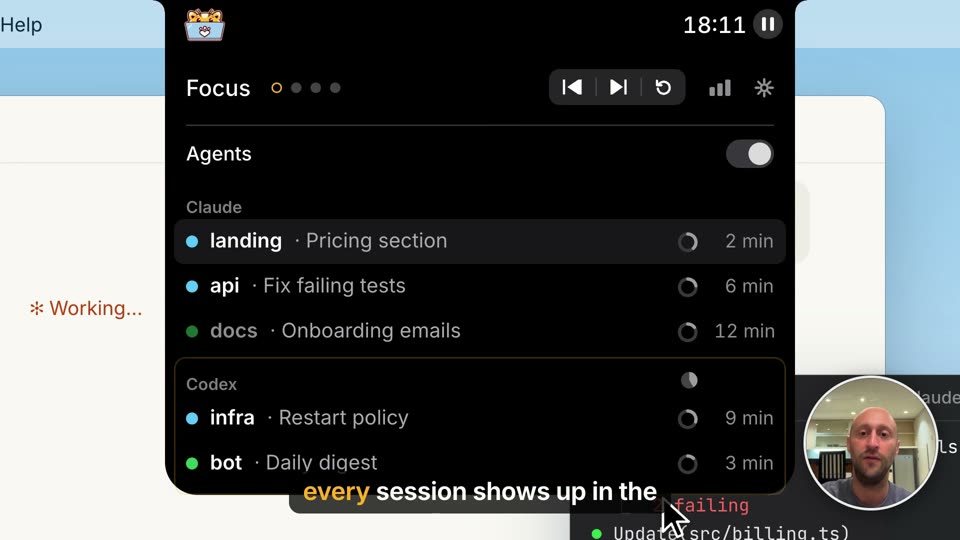 Play: Your agents at a glance
See which agent needs you
- During a focus, when a session finishes, fails or waits for you, one quiet line slides out of the island. No sound, no banner.
- Click the island to see every session, grouped by agent: working, waiting for you, finished or failed.
- Click a session to open it, in Claude Desktop, ChatGPT or the terminal it runs in.
- A session you’ve read dims, and leaves the list 15 minutes later.
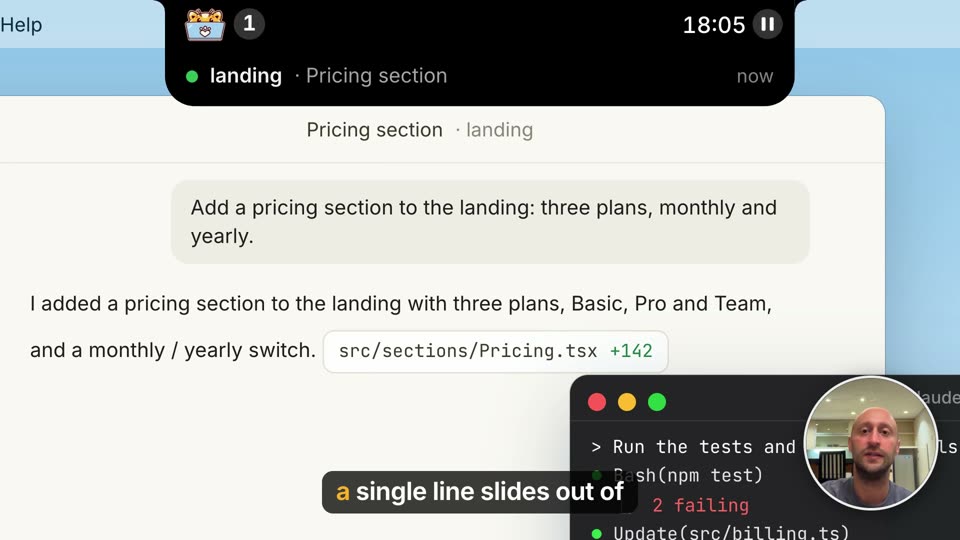 Play: One line when an agent needs you
Answer a permission request
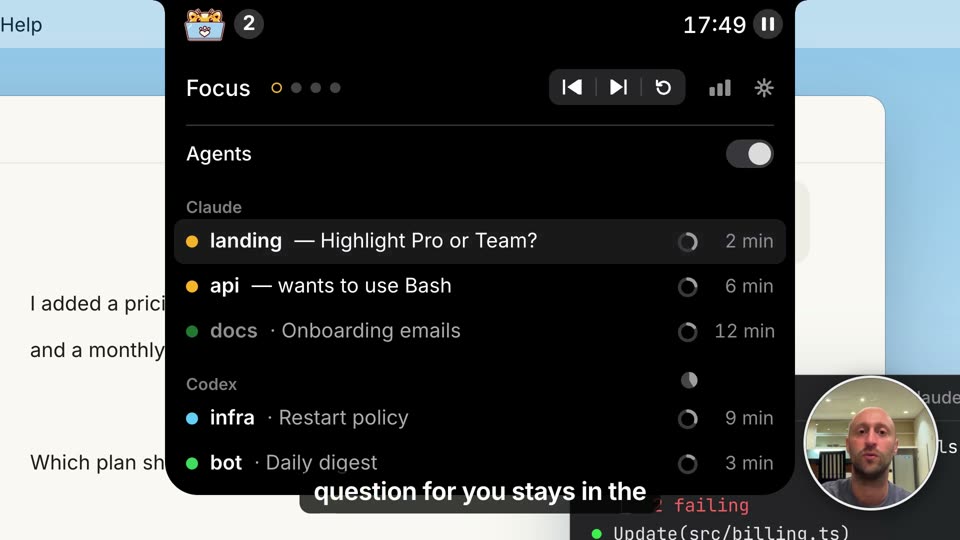
- When Claude Code or Codex asks to run something, the island says so: “api — wants to use Bash”.
- Click the island, then the session. It comes forward, and you answer there.
- Meowdoro only listens: it never approves anything and never slows an agent down.
 Play: Permissions and questions
Keep an eye on context and Codex limits
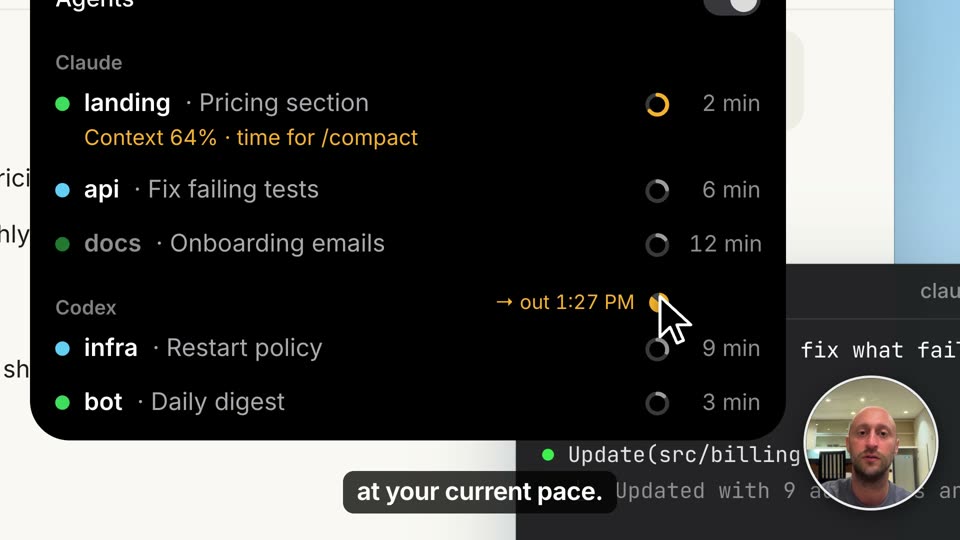
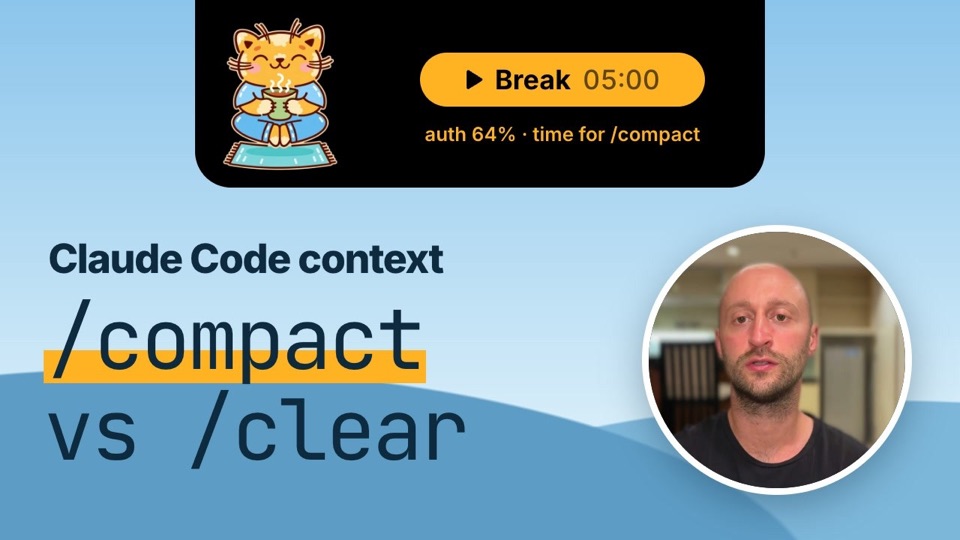
- Each session in the list has a ring that shows how full its context is. Past 50% (you can change it), the ring turns orange, and when a break starts the break card suggests
/compactfor that session. - Codex’s 5-hour and weekly limits are the small pie in the Codex group’s header. It turns orange from 80%, or when a window would run out before it resets, with the time it would run out.
- Hover over the pie to see both windows and when they reset.
 Play: Context and Codex limits
 Play: /compact vs /clear vs a new session
 Play: Hit your Codex usage limit?
More on both: when to compact and how Codex’s limits work.
Focus and breaks
Take a real break
- When a focus ends, the island slides out with the cat and its mug and the button for the break. Press it.
- During the break nothing about your agents reaches you. They keep working, and their news waits until you’re back.
- When the next focus starts, one line says what finished and which session is waiting for you.
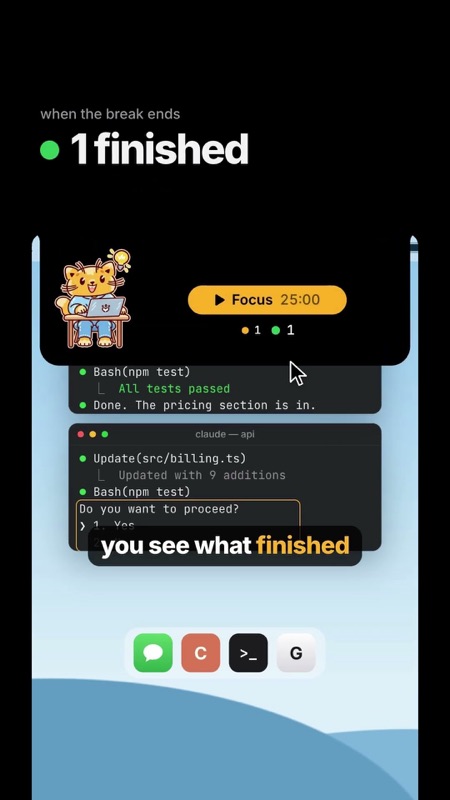 Play: Take a real break while Claude Code works
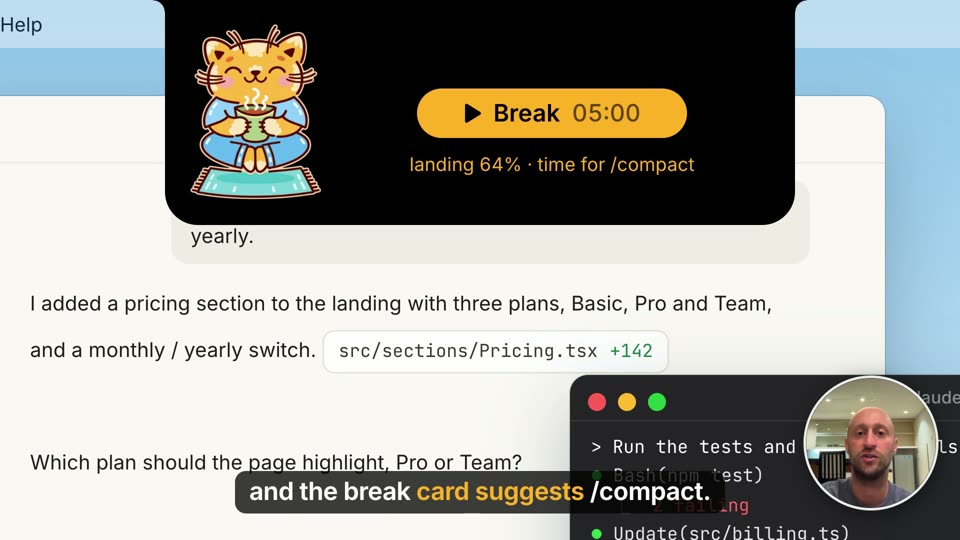 Play: A real break
Turn on Do Not Disturb during focus
- Right-click the island, choose Settings, and find Do Not Disturb during focus.
- Click “Add Do Not Disturb shortcuts” and add Meowdoro’s two shortcuts in Shortcuts: one turns Do Not Disturb on when a focus starts, the other turns it off when the focus ends, is skipped or restarted.
- Or pick your own shortcuts in “When focus starts, run” and “When focus ends, run”.
Why shortcuts: on macOS, only Shortcuts can switch a Focus mode on and off.
Pause the focus when you step away or take a call
- In Settings → Timer, turn on “Pause focus after 5 minutes without keyboard or mouse”, “Pause focus during calls” (the camera or microphone is in use), or both. They’re off by default.
- When a focus pauses, the time goes back to when you stepped away or the call began, and the island says so.
- When you’re back, the island offers Resume.
More
See your day in Statistics
- Open the island and click the chart icon in the timer row.
- Pick the day, the week or the month: focus time, finished sessions, rest and the focus-to-rest ratio, with a chart by hour or by day, and the projects you worked on.
- The journal lists every focus and break of the day. Rename a focus there, or delete a record entered by mistake.
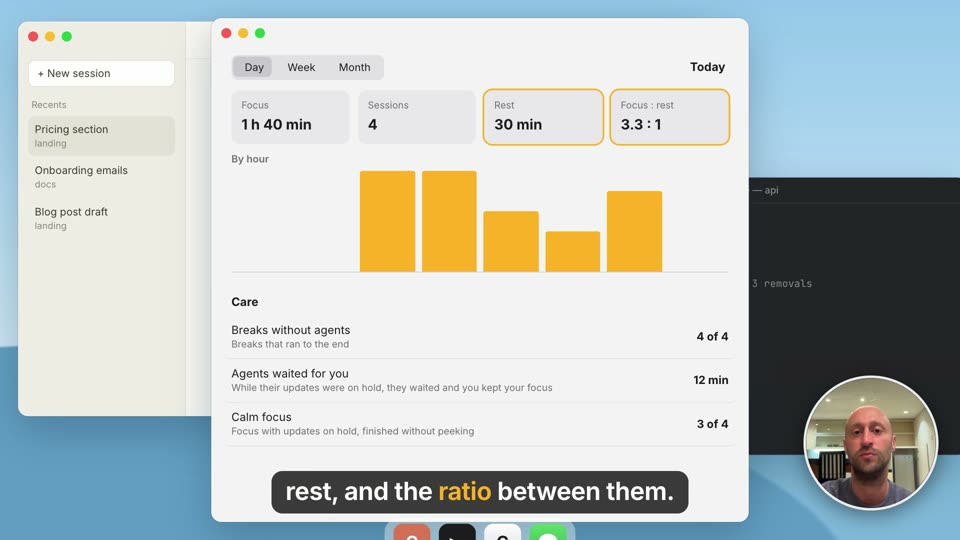 Play: Statistics
See agents on other machines
- Right-click the island, choose Settings, and copy the line from Remote agents.
- Run it on the VM, Linux server or other Mac where your agents work. It needs
python3andcurl, and installs a small helper. - Your Mac lists the machine right away, and its sessions show up in the island with the machine’s name. Only their status leaves that machine, encrypted end to end.
The details, updating and removing the helper: agents on other machines on GitHub.
Update Meowdoro
- Once a day Meowdoro looks for a newer version and says so in the island. Press Install.
- To look now, right-click the island and choose Check for Updates.
- Settings has the switch for the daily look, and Check Now.
Missing a how-to, or stuck on a step? Write to meow@meowdoro.com and tell us what you tried.